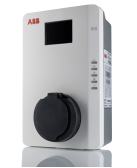
Connect ABB to KotiCharge
Follow these instructions to connect your ABB charging station to the KotiCharge operator backend using the TerraConfig mobile app.
1
Connect to the charger
- Download and open the TerraConfig app.
- Login to the app using KotiCharge account. Contact us for the account credentials.
- Press Configure charger in the app.
- Find and select your charger, and enter the PIN code when requested.
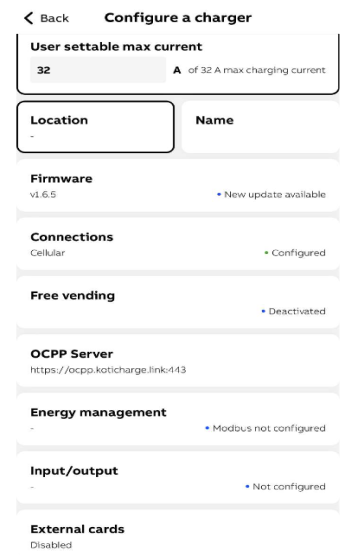
- Once connected, you will see the main configuration screen.
2
Internet connection
Skip this step if the device is already connected to the internet.
- On the settings page, tap Connections and configure the charger's internet connection (cable, Wi-Fi, or 4G).
- If using 4G, a SIM card with a data plan must be inserted into the device.
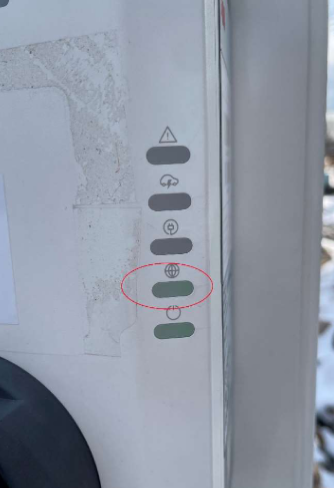
- Wait until the device is connected to the internet: the second indicator light on the charger will glow steady green (not blinking).
3
Disable free charging
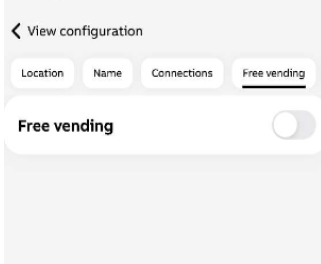
On the settings page, select Free charging and make sure that it is disabled.
4
Connect to KotiCharge backend
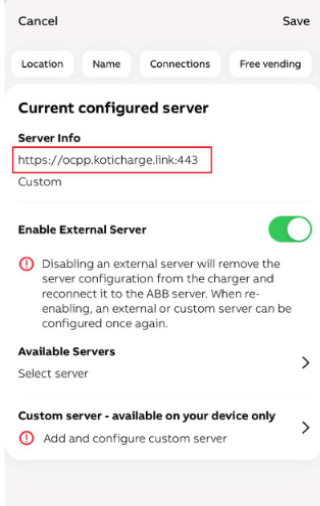
- On the settings page, press OCPP Server.
- In the new window, select Enable external server and then choose Available servers.
- Search for BescoInc in the list, select it, and press Load.
- The server details will appear (
https://ocpp.koticharge.link:443). - Press Save to save the settings.
5
For Electricians
Call KotiCharge for Testing
Locate the charger ID from the app and call KotiCharge to inform us of your charger's ID so we can activate it in our system and perform a charging test.
Charger setup is only complete once the charging test has been performed successfully. Please do not leave the site before that.