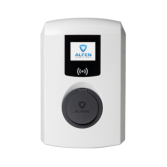
Connect Alfen to KotiCharge
Follow these detailed instructions to configure your Alfen charger for the KotiCharge network using the ACE Service Installer desktop application.
Before you begin
Ensure you have the following ready:
- A laptop with an Ethernet port
- An Ethernet cable
- Your device's ID and password
- Knowledge of how internet connectivity is provided to the charger (a SIM card is common)
Note: If you lost the password, inside the charger there is a label with a master password, which can be used to reset the password of the charger.
Download ACE Service Installer
Download and install the Alfen ACE Service Installer application to your laptop.
Download here →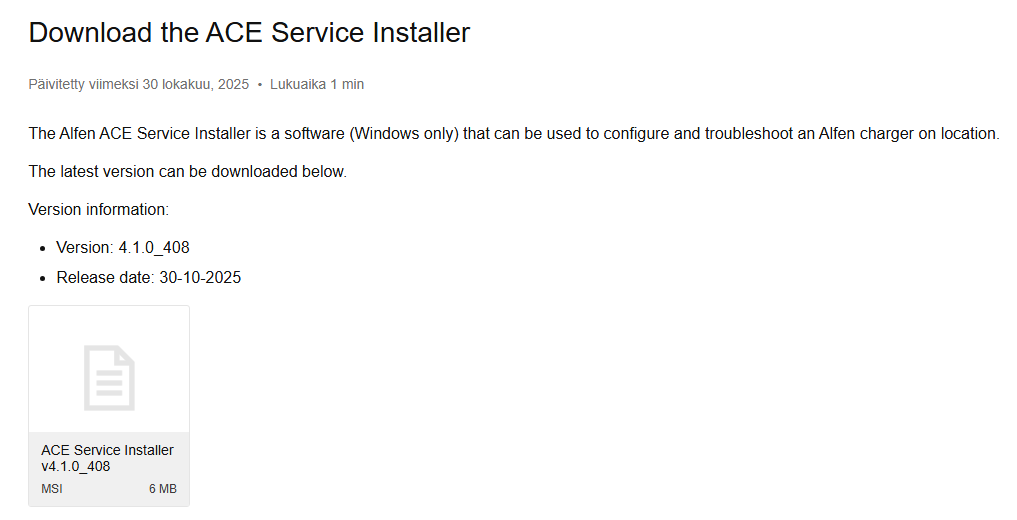
Connect & Log in
Connect your laptop directly to the EV charging point using an Ethernet cable.
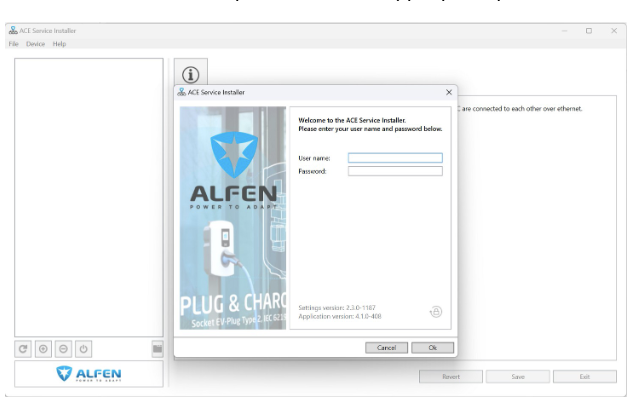
Log in to the application. Ask KotiCharge for the username and password via email at info@koticharge.com.
Update software & certificate
Search for available charging devices by clicking the scan icon on the left. Select your device from the list and log in with the device-specific password.
Note: If the device is not detected, you may need to configure static IP for the laptop in order for the tool to detect the charger.
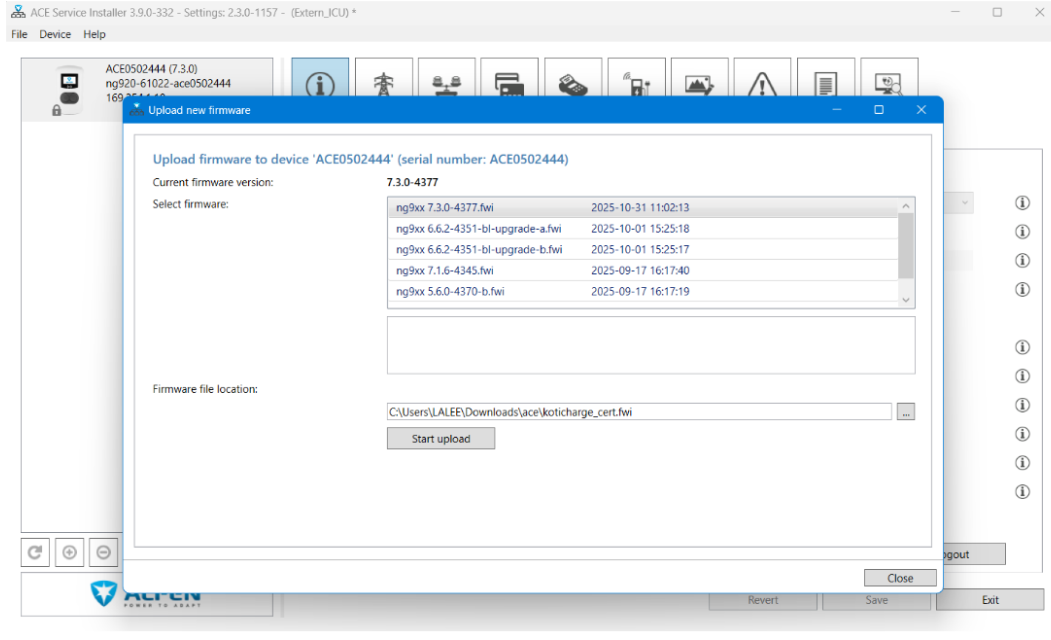
Update the firmware first to version 6.6.x, and then to 7.3.0 or newer.
Then, download KotiCharge certificate and upload it to the charger: Download koticharge_cert.fwi.
Require authentication
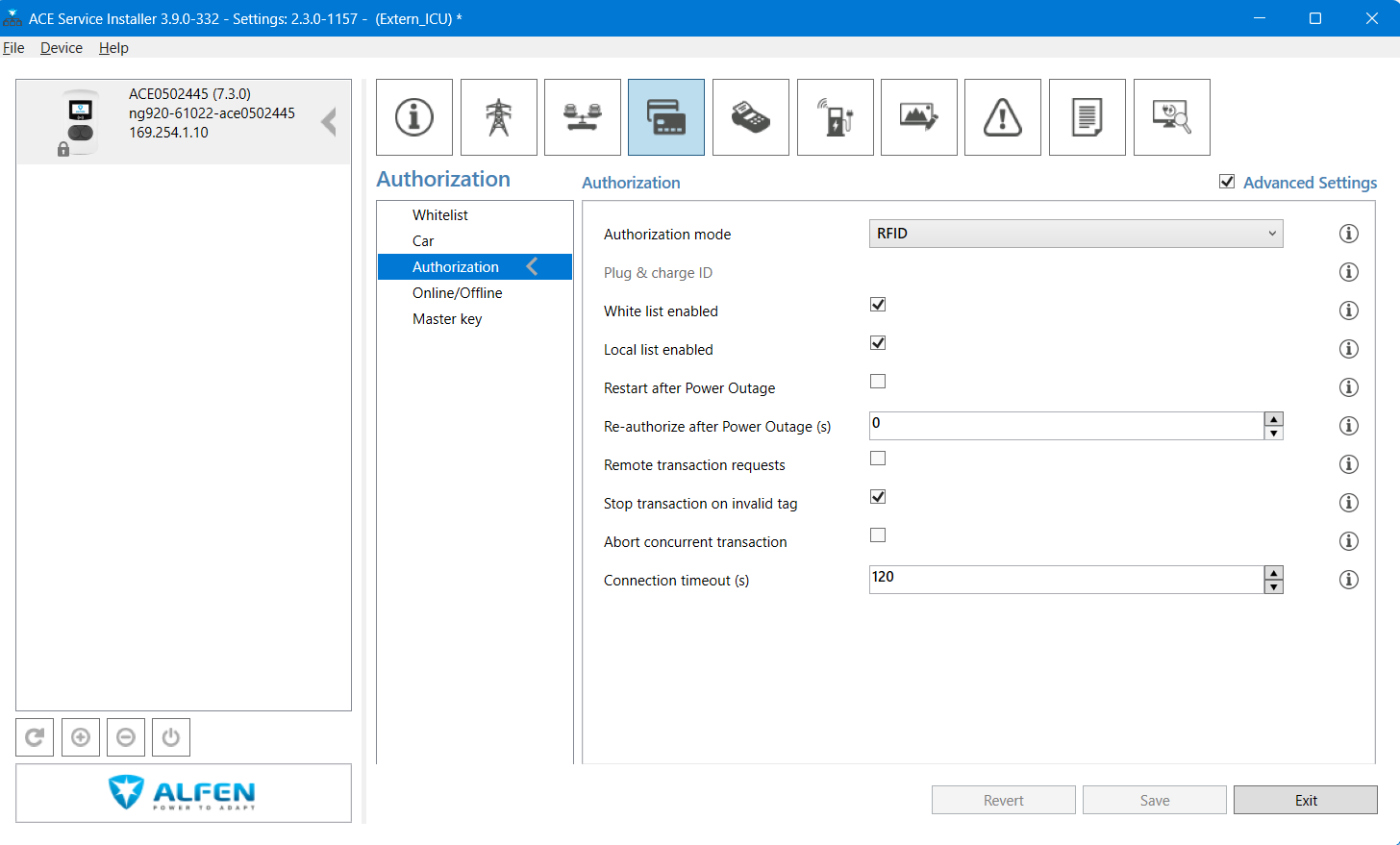
Go to the Authorization page, and make sure RFID mode is selected.
Set backend URL
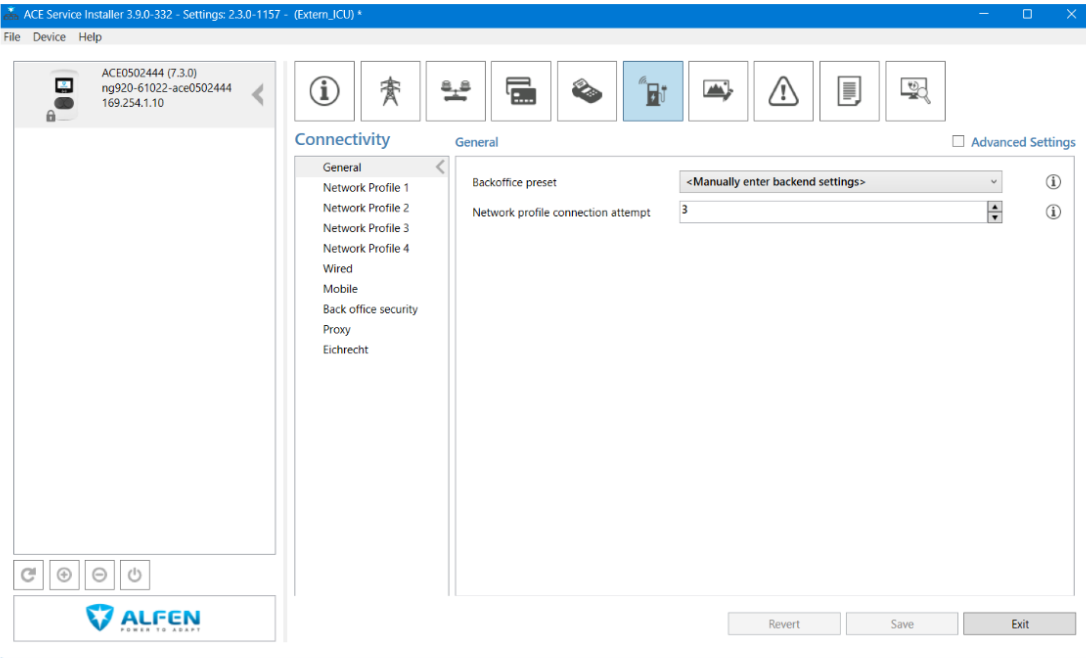
Find the network icon on the left. Change the "Backoffice preset" to Manually enter backend settings.
Select Network Profile 1. Then update the OCPP URL to the KotiCharge server address below and disable any other connection types. Save the changes.
wss://ocpp.koticharge.link 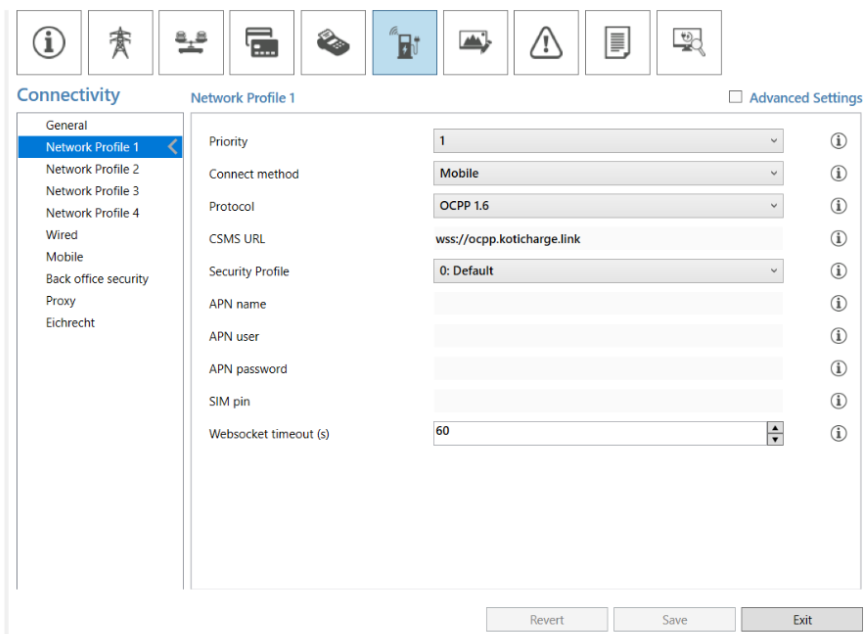
Set connection method
- Select 'Wired' if you are using an Ethernet cable connection.
- Select 'Mobile' if you are using a 4G/Mobile connection. You will also need to replace the SIM card with the one provided.
Note: This must be the very last configuration step you perform to avoid losing connection during setup. Save the settings and insert the new SIM card only after everything else is configured.
Call KotiCharge for Testing
Call KotiCharge to inform us of your charger's ID so we can activate it in our system and perform a charging test.
Charger setup is only complete once the charging test has been performed successfully. Please do not leave the site before that.