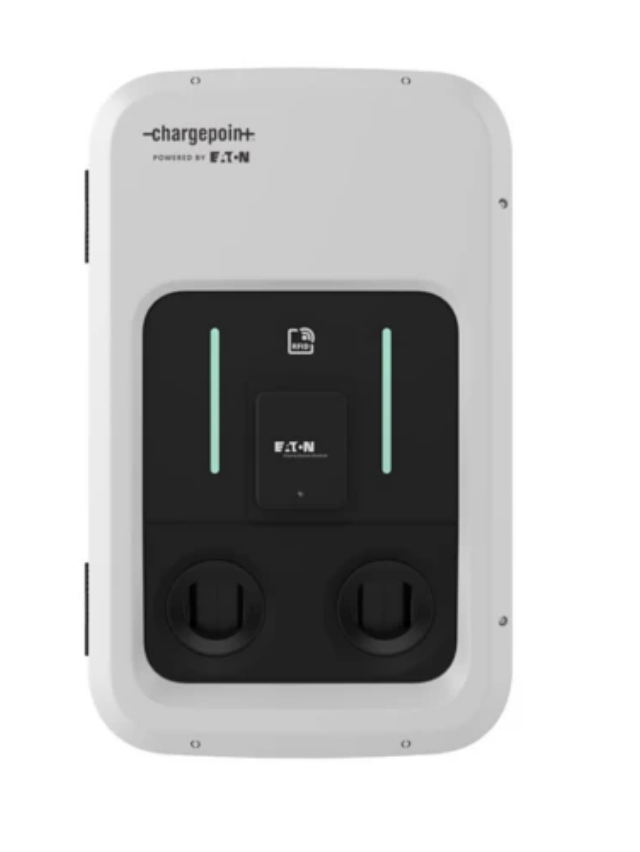
Connect Eaton to KotiCharge
Follow these detailed instructions to configure your Eaton AC (Green Motion) charger for the KotiCharge network using its built-in web interface.
1
Access the configuration page via WiFi Hotspot
Note: The configuration page is active for 30 minutes. After 30 minutes, you will need to switch the EV charger off and on to reactivate the configuration page.
To connect, follow the steps below:
- Switch the EV charger off and on by switching the circuit breaker off and on.
- Turn on the Wi-Fi on your phone or computer.
- Select the EV charger unit on the list under the name GM_MXXXX, where XXXX is the last four digits of the EV charger's serial number.
- Connect to the EV charger unit with the password:
GreenMotion!1052 - Go to the address: http://192.168.53.1. The configuration page for the selected EV charger appears.
- You might see a warning message before accessing the configuration page. Click on Continue.
2
OCPP configuration
Go to the OCPP configuration section.
- In the BoxId/ChargingStationId text box, enter the Serial Number of the charger.
- In the Server URL text box, enter the URL:
wss://ocpp.koticharge.link/ - In the Security Profile drop-down menu, select "2 - TLS user/password authentication".
- Username must be the same as the BoxId. Leave the password blank.
Save and Restart
Click "Save" and "Restart App" in the Reboot and Apply section at the bottom of the configuration page.
3
For Electricians
Call KotiCharge for Testing
Call KotiCharge to inform us of your charger's ID so we can activate it in our system and perform a charging test.
Charger setup is only complete once the charging test has been performed successfully. Please do not leave the site before that.